
Hey, all your artists out there! Have you ever noticed that some drawings don’t have those thick black outlines? Have you ever wanted to do that yourself?
Well, I’ll show you how I go about doing lineless art! Just keep in mind that this tutorial is intended for folks who use Clip Studio Paint– that’s the program I’ve been using for about two years now, give or take!
Sketch things out
Sketches are the backbone of every piece of art. I personally like using the real pencil tool at around 10-15 pixels, depending on the size of the canvas. In this case, I used 15.
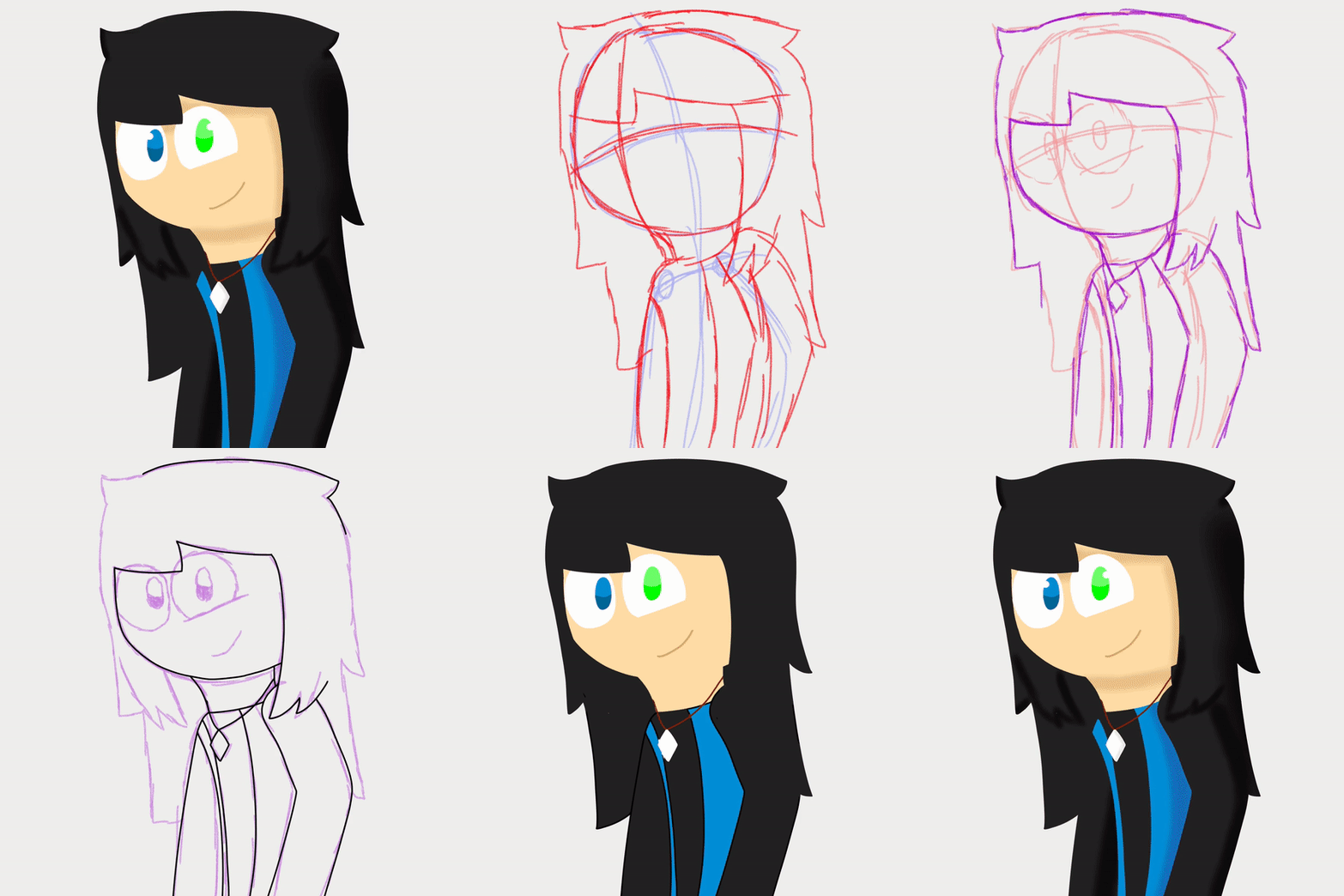
I’ve also (fairly recently, actually) gotten into the habit of making multiple sketches, oftentimes three:
One to get the rough idea of the pose…

One to add detail…

And one to clean everything up!

I do every sketch on a separate layer, using the one before it as a template by knocking down the opacity and drawing over it.

It’s also a good idea to make every sketch a different color, so it’s easier to tell them apart!
Lineart
My favorite part! (not really, I do not like lineart at all). But it’s important so you can see what you’re doing. On another layer on top of your final sketch, draw in your lineart- those famous black outlines will still be around, but we’ll take care of them later!

I usually use the G-pen tool for this, and for this canvas, I went for a size of around 10 px.
Flat color
Now the part that is actually my favorite! Make a layer under your lineart to color everything in. For the sake of your sanity, use the paint bucket tool. It’s so much easier than coloring by hand. You can then fill in any white gaps by hand.
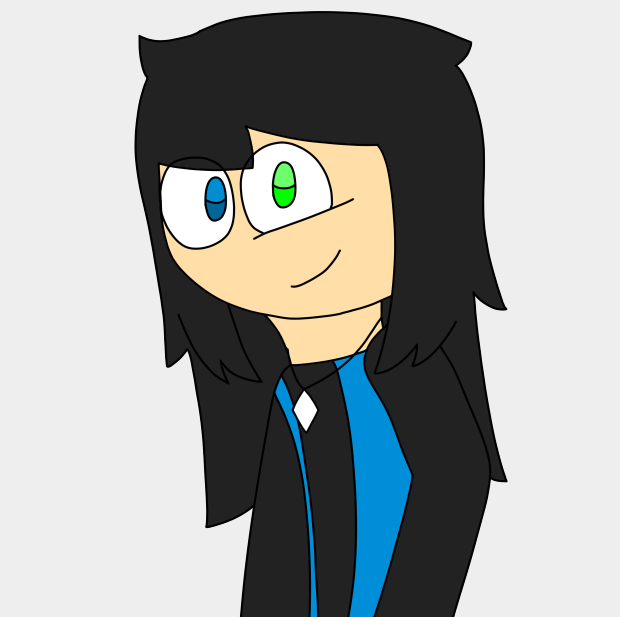
- Make those lines disappear!
Now before we do anything else, make a copy of your lineart. This is just in case we need it for anything later/want to make any fixes. Once you’ve made that copy, hide it.
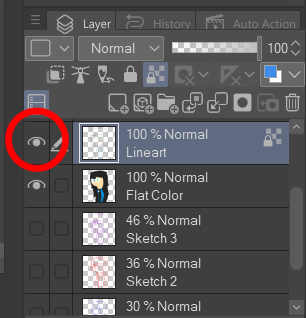
As for the visible lineart, we can make those black outlines disappear! You do that by selecting your lineart layer and clicking this little icon.
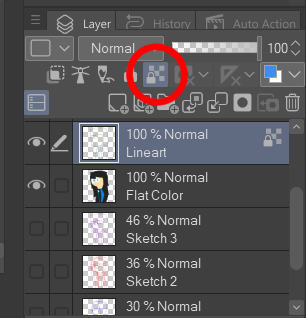
Once you’ve hit that, you won’t be able to draw anywhere except where your lines are.
This is useful to us, as this means we can change those black outlines to our base colors by simply grabbing the color we want to use and coloring over it.


Now, do something similar to the rest of your lineart and you should end up with something like this:

“But Eliza!” I hear you cry, “Some of my shapes merged together! I can’t tell what’s what anymore!”
I get it. You can see how, in my drawing, Snow’s arm seems to blend into her hair, since they’re the same color. Ideally, you’d be using colors that can contrast well against each other, but if you can’t for whatever reason, we need to make our shapes more defined by adding…
Shading
Remember when I said to keep a copy of your lineart layer?
Unhide that by clicking the left of the layer so the eyeball icon is showing again. Hit “Lock transparent pixels” on this layer and color the whole thing some bright color- I like using red. Then, knock down the opacity so you just barely see those lines

See how Snow’s shoulder can be seen against her hair now? By putting our shading above this layer, we can use these lines as a guide to figure out where we need to differentiate between shapes. Once we’re done, we can always hide that guide layer again or delete it entirely.
Now when you’re shading, I highly suggest selecting each part you’re going to shade so you don’t accidentally color something you weren’t meaning to. Move over to the bar on the far left and look for this little icon:
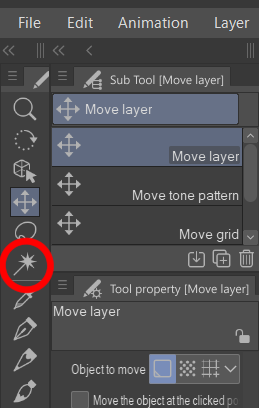
Hit that and then click the segment you want to shade. You should see dotted lines surrounding it. Make sure you hide the guide layer before doing this, or this won’t work properly. You can immediately unhide it after, once we got the section we want. So, if I wanted to shade Snow’s hair/shirt first, I could do this:


Since I hid the guide layer before selecting that darker region, the guide layer is included so we can draw over it.
Now, you can shade! I like using the airbrush shadow tool for this! Keep in mind where your light source is and which parts you want to stand out. I also recommend using multiple layers for this, so you can adjust the opacity for each color- some sections might come out darker or lighter than you want! With shading, we can make this flat drawing pop!

And that’s all there is to it! Now, go make good arts!
– Eliza